Intro#
If you’re a musician and haven’t played with a looper pedal, I’d highly recommend it. More likely, if you’re reading this article, you already know how fun playing with a looper is and how much creativity it can enable with your instrument. Many people even gig solo with a looper pedal allowing them to perform as a one-man band. To do this, however, a simple one-track looper like the BOSS RC-1 I’ve been using up until this point is very limiting. With fully featured multi-track loop stations like the BOSS RC-600 and Sheeran Looper X costing upwards of $1000, I decided to start developing a versatile open-source multi-track loop station that can be built with common hobbyist modules.
I’m intending it to be viable as an all-in-one type pedal that lets you plug in a guitar (or other electric instrument), MIDI controller, microphone, and hop right into creating “full band” sounding live loop performances with no extra equipment required.
Intended Features#
Starting perhaps somewhat ambitious, in this first version I’m aiming to include the following features:
- At least 4 Loop tracks with start and stop switches (double tap sucks)
- Built-in MIDI player to allow for drum or synth loops to be created right in the pedal
- Built-in drum loops (and a way to upload your own)
- 2x Instrument and MIDI (USB) inputs
- Touch screen display with UI
- Stereo outputs and headphone jack out
- Tap tempo and measure sync (start and stop loops on beat 1)
- Basic built-in effects that can be turned on per track or assigned to a switch
Design Considerations#
Before even making a schematic or ordering any parts, some research must be done and design decisions must be made.
Stereo#
One question that matters for downstream decisions is: how important are stereo inputs and outputs? It adds potentially unnecessary complexity, especially if the most common use case is plugging into a single amplifier or getting mixed to mono anyway if performing live. However, actually getting stereo effects like chorus, ping pong, and being able to mix the loop tracks on the pedal would be pretty sick if using dual amps, headphones, monitors, or a PA system. Dual outputs would also allow for drums to go to one output with mono guitar to the other, and other options that can be added in software later.
For this prototype build, I’m looking at using a sound card with only two input channels, and I think using these as a mono instrument input and a microphone input is likely more useful than stereo instrument inputs. I will include stereo outputs though to allow for track mixing/stereo effects. Later in doing a custom board design, dual instrument inputs plus a mic can be added by using more channels on the codec than the sound card supports.
Hardware#
Main Electronics#
This project calls for a processor with a powerful enough CPU to record, mix, and play multiple audio tracks in real time, while also running a display with a UI. Importantly, it also requires enough RAM to store multiple tracks in memory and an ADC + DAC to convert audio from analog to digital and back.
For these core functions, I decided to use a Raspberry Pi 4B paired with a HiFiBerry DAC+ ADC sound card. These are easy to prototype with thanks to the GPIO header pins, but also make transitioning to a more professional setup later relatively smooth using the Compute Module 4 and the ADC/DAC (PCM1863/PCM5122) chips directly. The one problem is that Linux is not a real-time system by default, but with some OS modifications it should be able to get down to <10ms latency.
For the UI, I want to use a touchscreen display just as a personal preference since there will be many menu options, and navigating menus with rotary encoders is annoying in my opinion. I may implement support for knob navigation in the future, but if you’re following along and would prefer to save money with a non-touch screen and encoders feel free to fork the project and modify it yourself.
The screen needs to fulfill a few requirements:
- DSI connector (ribbon cable). SPI would possibly interfere with the audio card, and HDMI would add unnecessary bulk and cables within the assembly (on top of likely being harder to implement in a future PCB).
- IPS display. An IPS display that provides a good viewing angle is a necessity for a display down in front of you on the ground.
- Capacitive touchscreen. Almost goes without saying, but the resistive touchscreens you need to press down with a stylus won’t work for this.
- Controllable backlight and decent brightness.
Within these criteria I selected a ~$50 5" monitor off of Amazon.
Supporting Circuits#
Buffer Circuit
If an instrument is plugged directly into the sound card, it needs to come from a low impedance source or the sound quality could be affected.
An electric guitar has high impedance so we need a circuit with high input impedance to match the guitar and low output impedance to match the sound card, ideally while not modifying the signal at all.
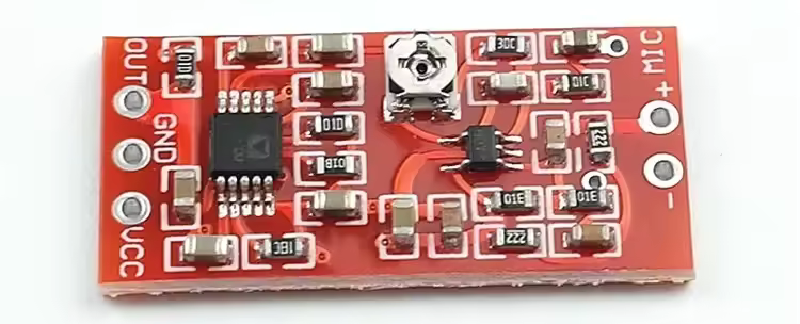
Microphone Preamp
The pedal will have an XLR input for a dynamic microphone, but before the signal can go to the sound card it needs to be amplified. For this a small amplifier circuit is required which for the prototype I’ll be using a MAX4466 and SM2167 based amplifier/compressor module.
Connectors and Switches#
Instrument Jacks
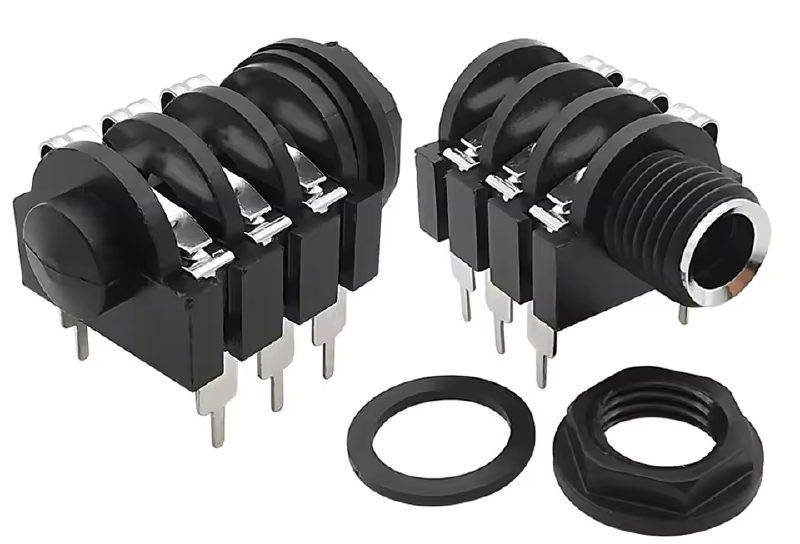
Since we will be implementing stereo outputs and eventually stereo inputs, we need to be able to detect if a cable is connected to the “R” jack to determine if the output is mixed to mono or not. This means we’ll need switched input jacks.
Internal Wiring
To avoid picking up noise from the raspberry pi I’m planning on using shielded cable, and potentially copper foil if the
Switches
Of course, 10 footswitches will also be needed. Eight for the loop tracks and two programmable for toggling settings. These will be momentary, with any toggling happening in software and so that a double tap or hold can be detected.
Power
Ideally the Raspberry Pi 15W USB-C charger would be enough to power everything, the preamp and buffer should draw very little current, but the documentation on the touchscreen and how much it draws was unclear. The plan is to use the 5V rail on the Raspberry Pi to power everything and use RC filters before the buffer/preamp to avoid noise from the Pi affecting the audio input. If this noise is unavoidable or if other power issues arise, another power supply solution may be needed.
Enclosure#
A large standard cast aluminum enclosure could be used for this build, but I’d like to design it to be more compact with two “stair steps” for the play and stop switches. For the prototype I’m going to 3D print it in PLA, and use conductive tape if noise is an issue.
To get an idea for the dimensions, layout, and assembly process I quickly made a draft model in FreeCAD.
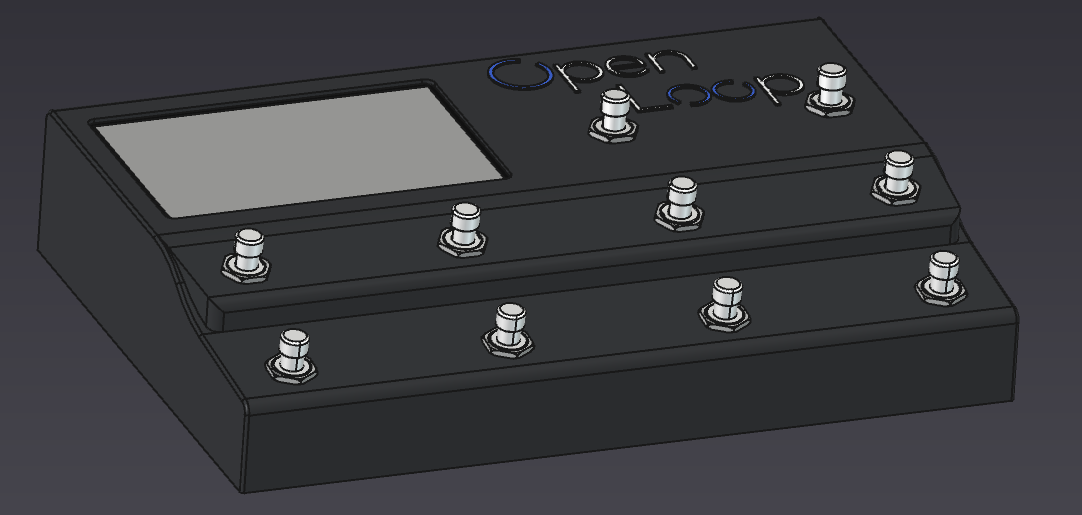
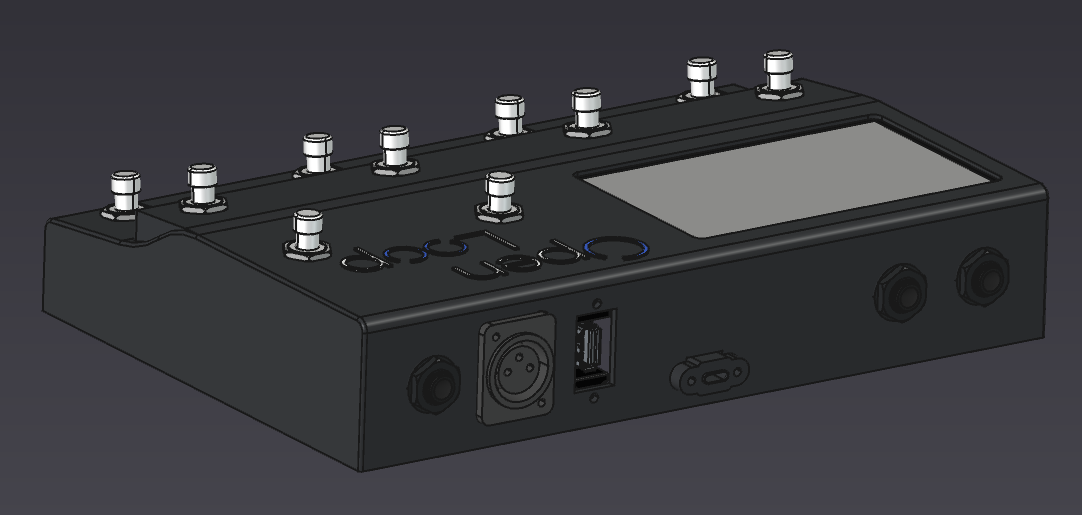
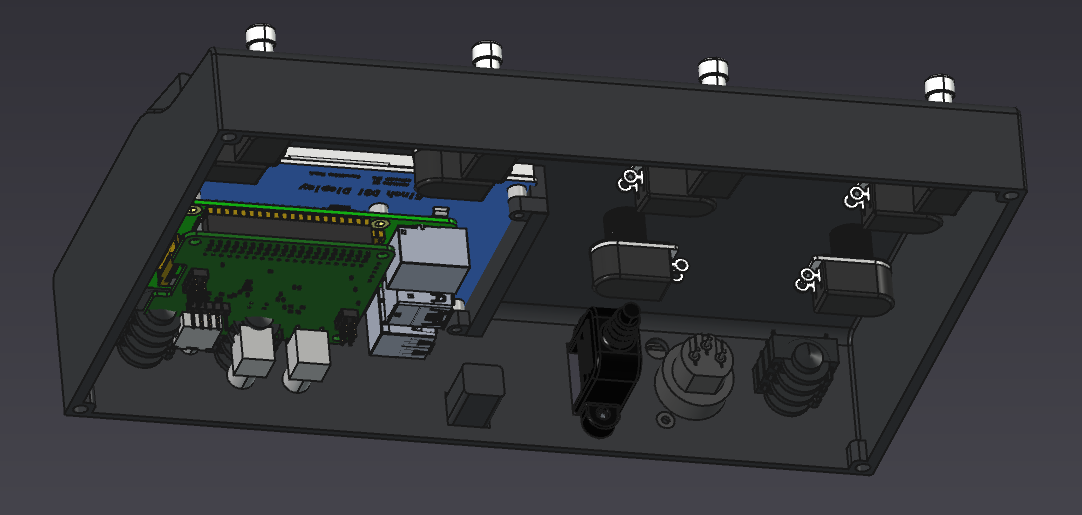
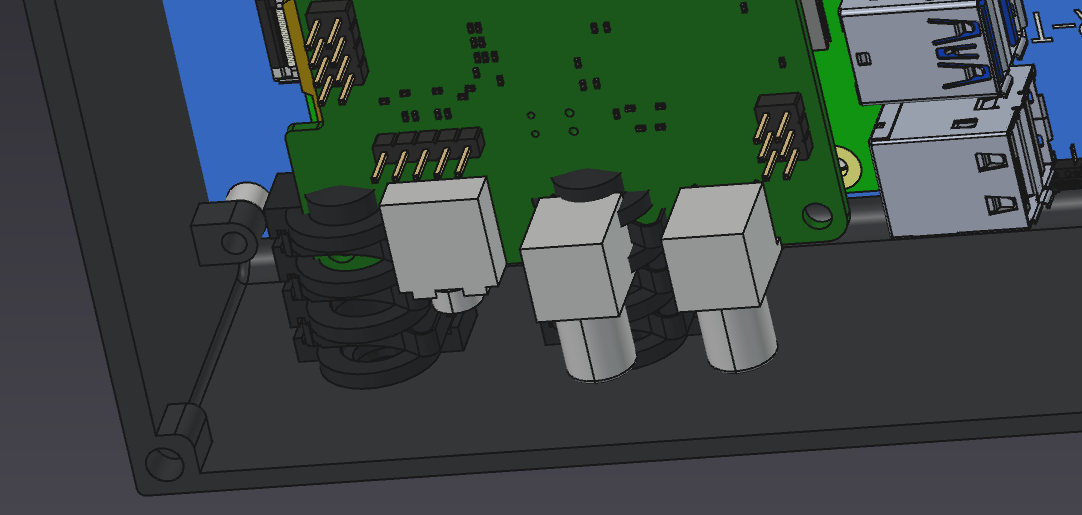
This model looked good in terms of the screen and switch placements but there were some things I got wrong at first, such as: the audio output placements interfering with the Raspberry Pi, the structure being unoptimized for 3D printing, and the screen mounting being basically un-assemblable.
Using these lessons learned in the draft version, I … (next model to be completed)
BOM#
This spreadsheet details all the used hardware and the costs.
Software#
To get the Raspberry Pi processing audio with as low latency as possible, the normal desktop Raspbian OS is not the best idea. Using Raspberry Pi OS Lite strips away the unnecessary desktop environment while a UI can still be implemented using the DRM (Direct Rendering Manager).
Real Time Kernel#
To ensure that the UI doesn’t take priority over audio processing, we apply the PREEMPT_RT Linux kernel patch. This allows the kernel to be interrupted at any time, and for you to give processes priority over others.
(Step by step instructions may be moved to a separate article)
Pi Set Up Instructions
These instructions apply to a fresh install of Raspbian OS Lite (Debian 13 Trixie) as of May 2026. Your mileage may vary.
To do this, open a shell on the raspberry pi via ssh or by plugging in a monitor and keyboard.
Install some prerequisites and download the kernel source
sudo apt update
sudo apt install git bc bison flex libssl-dev make libncurses5-dev build-essential
cd ~
git clone --depth=1 --branch rpi-6.12.y https://github.com/raspberrypi/linux
cd linux
Then generate the config file and open the configuration menu
make bcm2711_defconfig
make menuconfig
In this menu navigate to General setup -> Preemption Model -> Fully Preemptible Kernel (Real-Time)
Then save and exit
Edit the config file to make the version clear
Set CONFIG_LOCALVERSION to “-v8-rt” or similar
Build the Kernel with
make -j4 Image.gz modules dtbsChill for the ~2 hours it takes to compile, then install the kernel modules
sudo make modules_installCopy the kernel and device tree files into the boot partition
sudo cp arch/arm64/boot/Image.gz /boot/firmware/kernel_rt.img
sudo cp arch/arm64/boot/dts/broadcom/*.dtb /boot/firmware/
sudo cp arch/arm64/boot/dts/overlays/*.dtbo /boot/firmware/overlays/
sudo cp arch/arm64/boot/dts/overlays/README /boot/firmware/overlays/
Then edit /boot/firmware/config.txt and make the following changes:
- Find the
[all]block and addkernel=kernel_rt.imgright below it - Add
dtoverlay=hifiberry-dacplusadcto enable the HiFiBerry drivers - Disable the onboard audio by changing
dtparam=audio=onto off
Now reboot the pi and check that the real-time kernel is running with uname -a
Real Time Privileges#
Now that the kernel is set up we need to enable our system to allow more priority to be given to the audio server, and to prevent memory from ever being moved from RAM to the SD card.
Add the user to the audio group
sudo usermod -a -G audio $USERCreate a audio.conf file with sudo nano /etc/security/limits.d/audio.conf and place the following in and save
@audio   -  rtprio     95
@audio   -  memlock    unlimited
Check by rebooting and checking ulimit -l and ulimit -r
These should be “unlimited” and “95”
Startup Config#
Set the pi to auto login on boot by using sudo raspi-config and navigating to System Options -> Auto Login and enabling auto login.
Audio Server#
To set up PipeWire first install the needed packages sudo apt install pipewire pipewire-audio-client-libraries pipewire-jack
Make a local config in the home directory
mkdir -p ~/.config/pipewire
cp /usr/share/pipewire/pipewire.conf ~/.config/pipewire/
and edit the file. Uncomment and modify the following lines in the context.properties section
default.clock.rate          = 48000
default.clock.allowed-rates = [ 48000 ]
default.clock.quantum       = 64
default.clock.min-quantum   = 64
default.clock.max-quantum   = 64
Then set PipeWire to start automatically on boot
systemctl --user enable --now pipewire pipewire-pulse wireplumberSet the mix levels by opening alsamixer then hitting f6 and selecting the HiFiBerry card. Set “Digital” to -3.5db gain.
Exit and save the settings with sudo alsactl store
Making Sounds#
jack-keyboard fluidsynth -a jack -j -m jack /usr/share/sounds/sf2/FluidR3_GM.sf2 slgui -l 2
pw-link jack-keyboard:midi_out fluidsynth-midi:midi_00
pw-link fluidsynth-midi:left sooperlooper:common_in_1
pw-link fluidsynth-midi:right sooperlooper:common_in_2
pw-link sooperlooper:common_out_1 alsa_output.pci-0000_00_1f.3-platform-skl_hda_dsp_generic.HiFi__hw_sofhdadsp__sink:playback_FL
pw-link sooperlooper:common_out_2 alsa_output.pci-0000_00_1f.3-platform-skl_hda_dsp_generic.HiFi__hw_sofhdadsp__sink:playback_FR
Mic Inputs:
pw-link alsa_input.pci-0000_00_1f.3-platform-skl_hda_dsp_generic.HiFi__hw_sofhdadsp_6__source:capture_FL sooperlooper:common_in_1
pw-link alsa_input.pci-0000_00_1f.3-platform-skl_hda_dsp_generic.HiFi__hw_sofhdadsp_6__source:capture_FR sooperlooper:common_in_2Effects#
For built-in effects, I’m going to be using the open-source Guitarix and LSP (Linux Studio Plugins). The plan is to use the LV2 plugin format which inherently decouples the audio processing and UI, allowing the custom pedal UI to control the effects through OSC or MIDI. To use these plugins a host is required to manage and provide an interface to interact with them. For this I will be using mod-host from the MOD Project which handles the routing of multiple effects internally and provides one simple input and output for PipeWire/JACK.
flowchart LR
    In[Input] --> Fx[Effects]
    Fx --> Loop(SooperLooper)
    Loop --> Out[Output]

    M[MIDI] --> Syn[Fluid Synth]
    Syn --> Loop
    Syn --> Out